
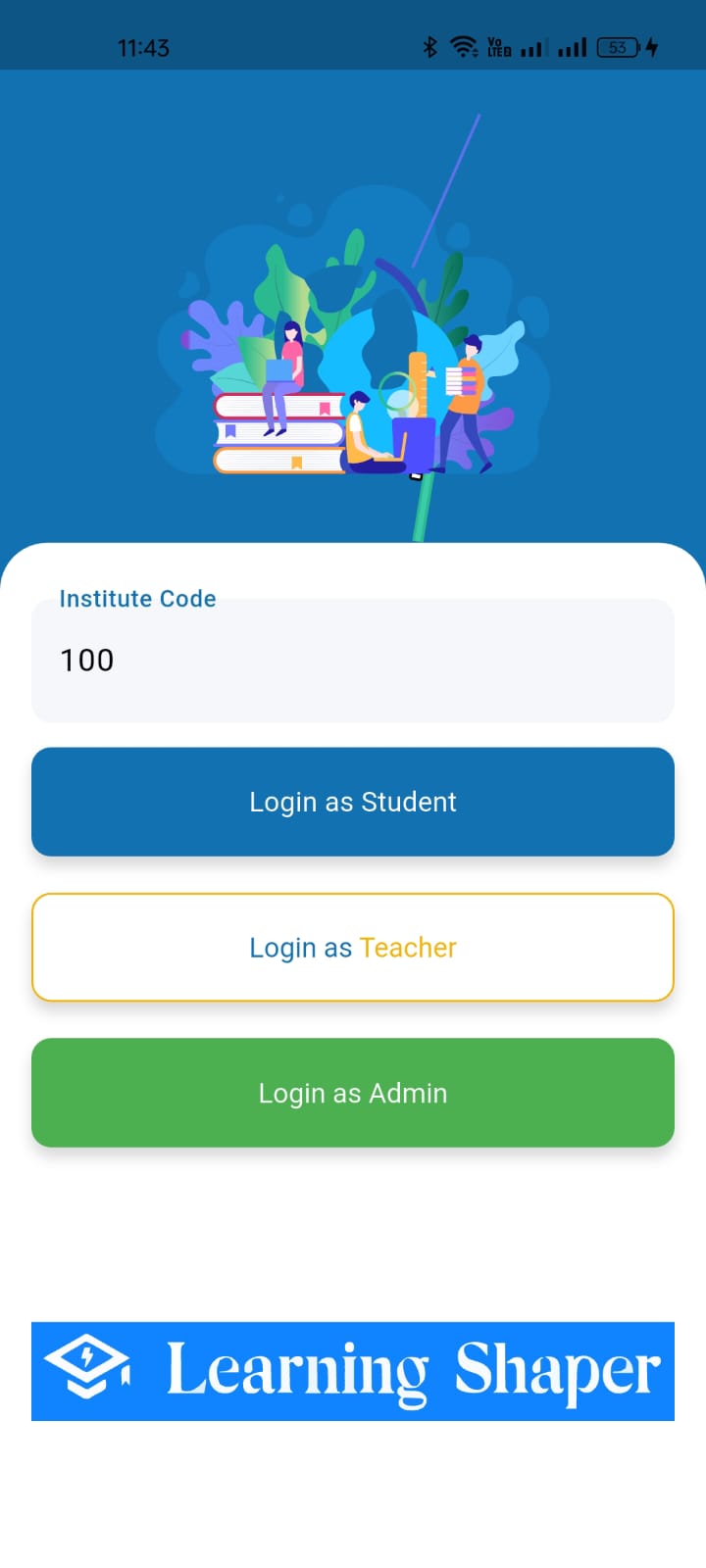
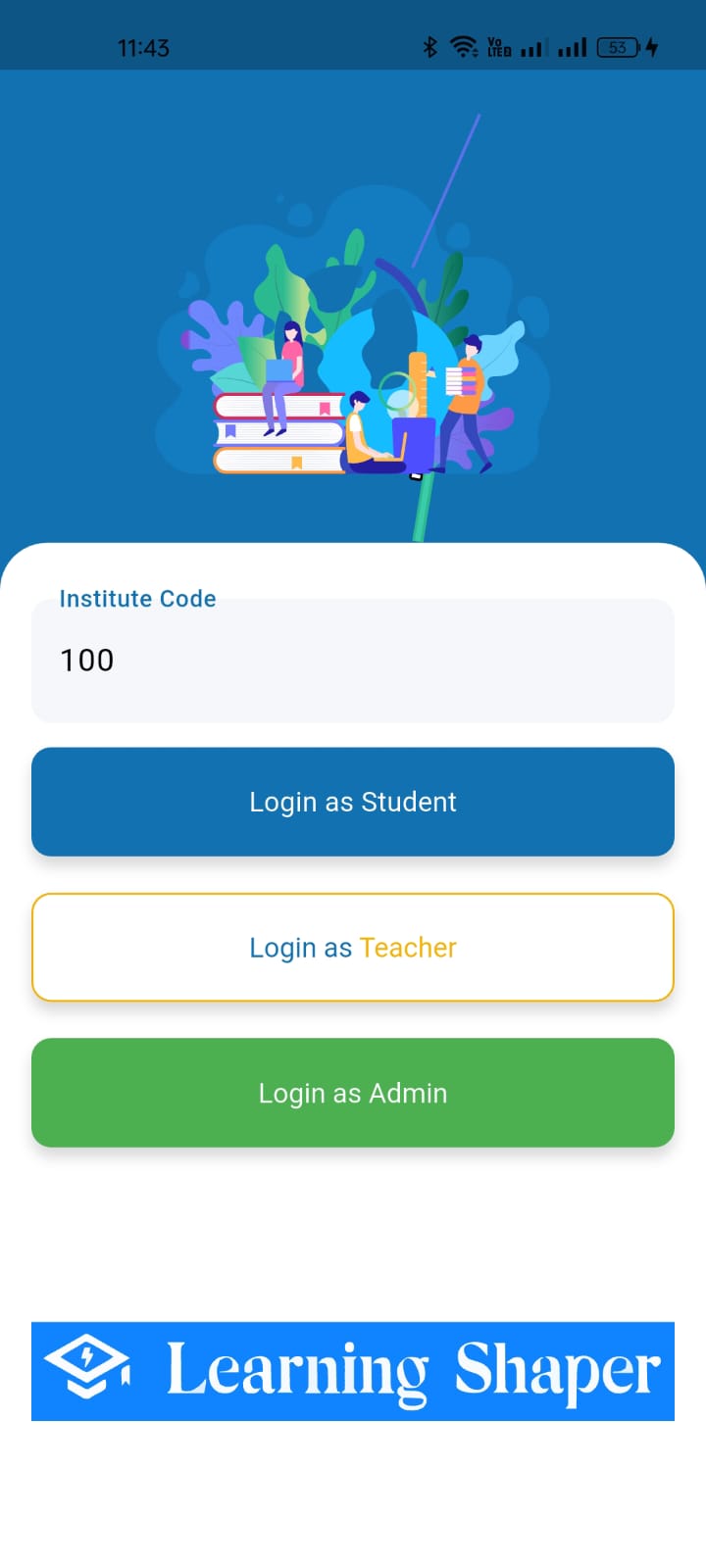
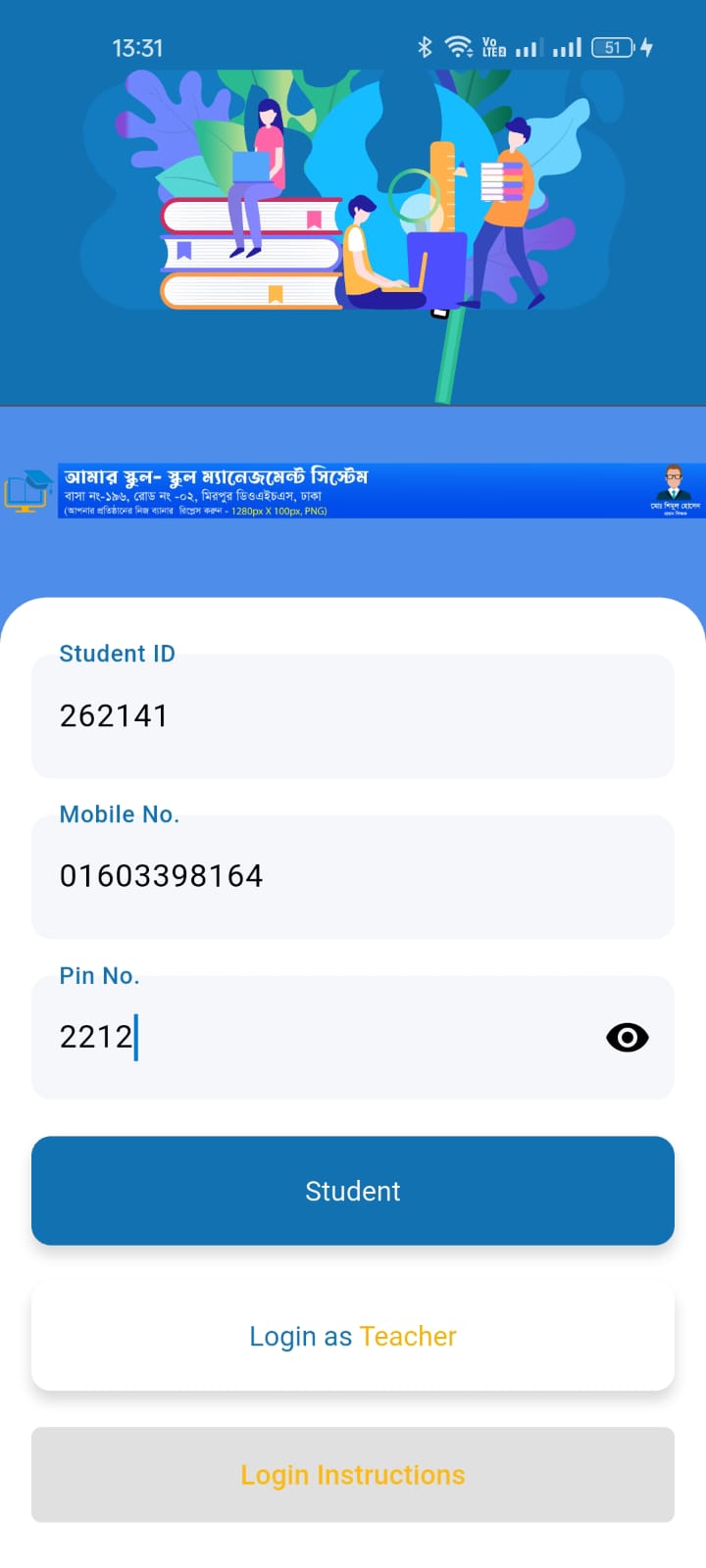
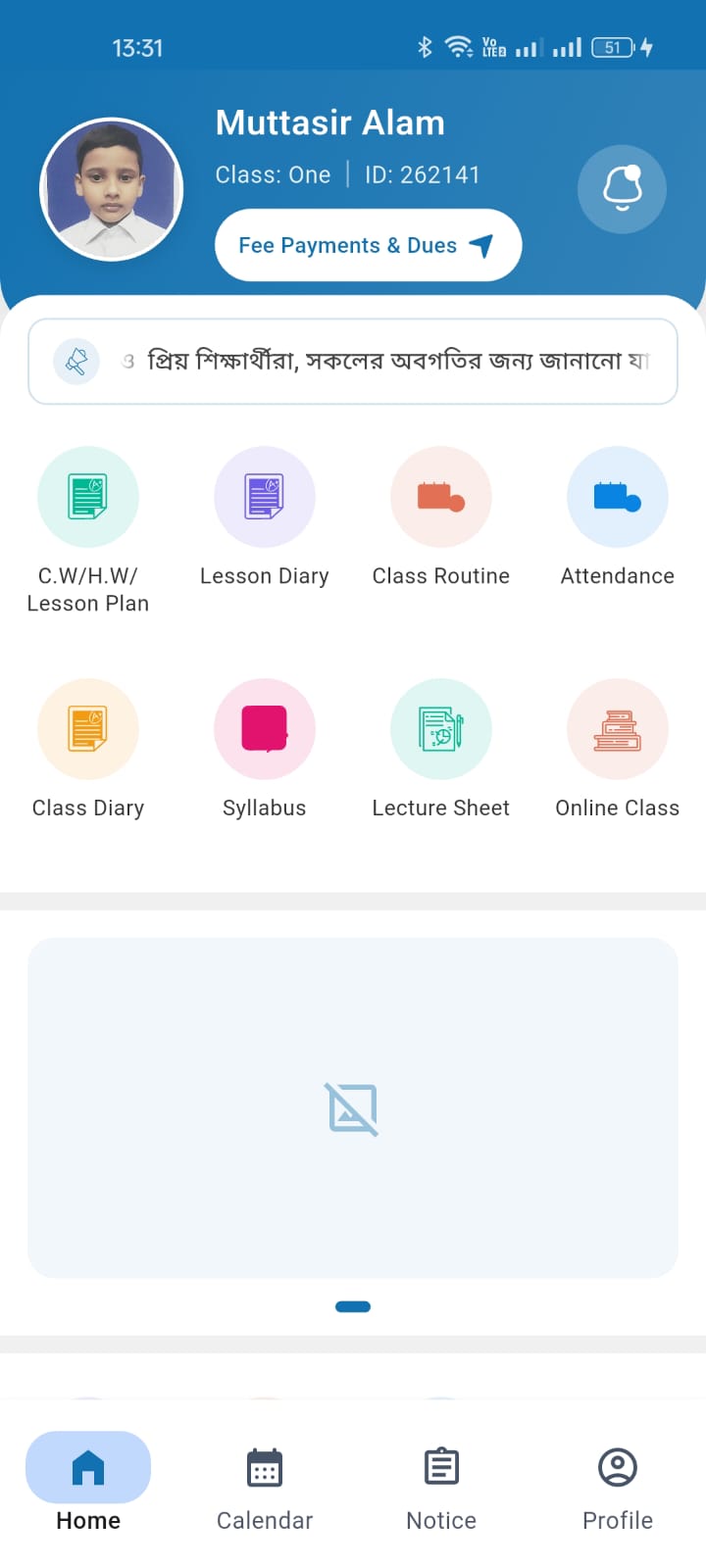
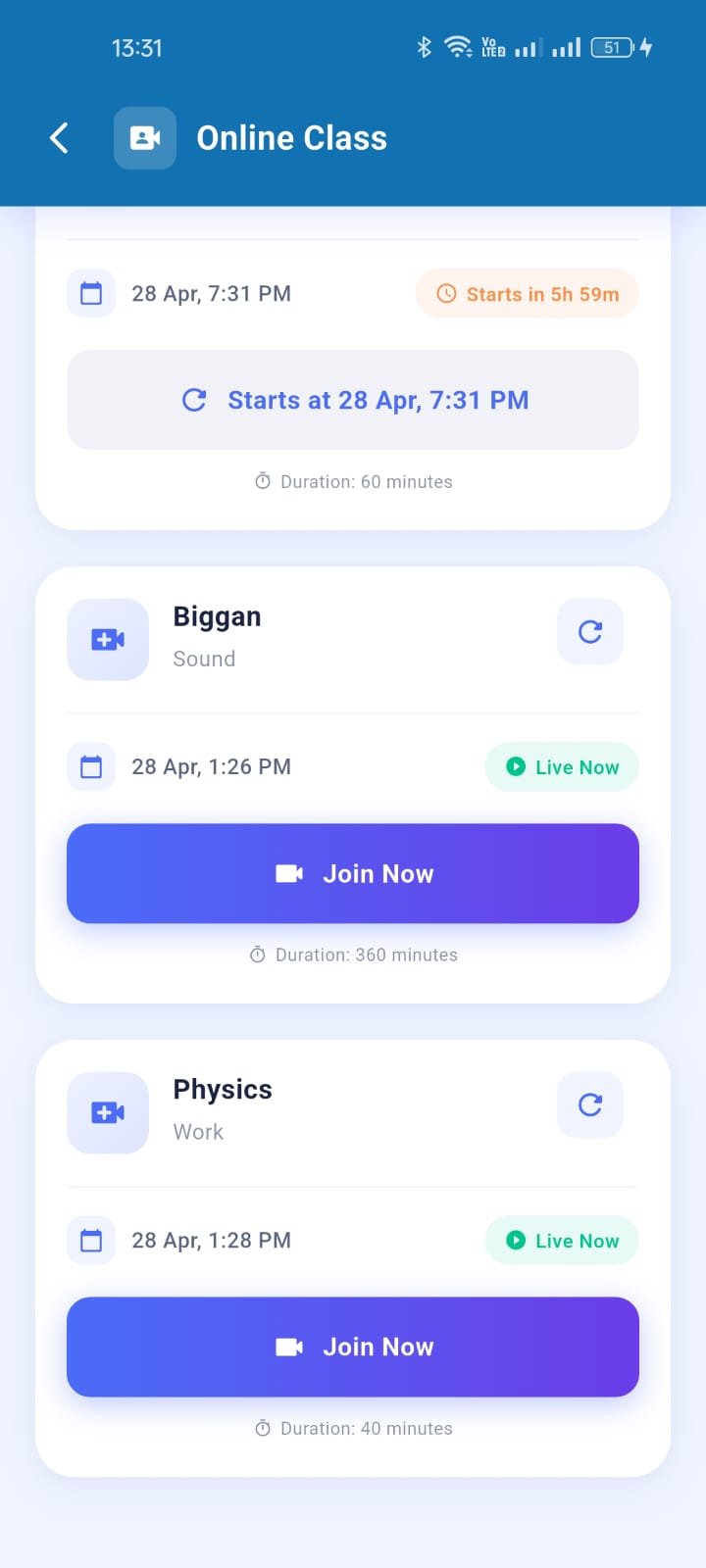
To access classrooms and join zoom meetings, first download our mobile application.
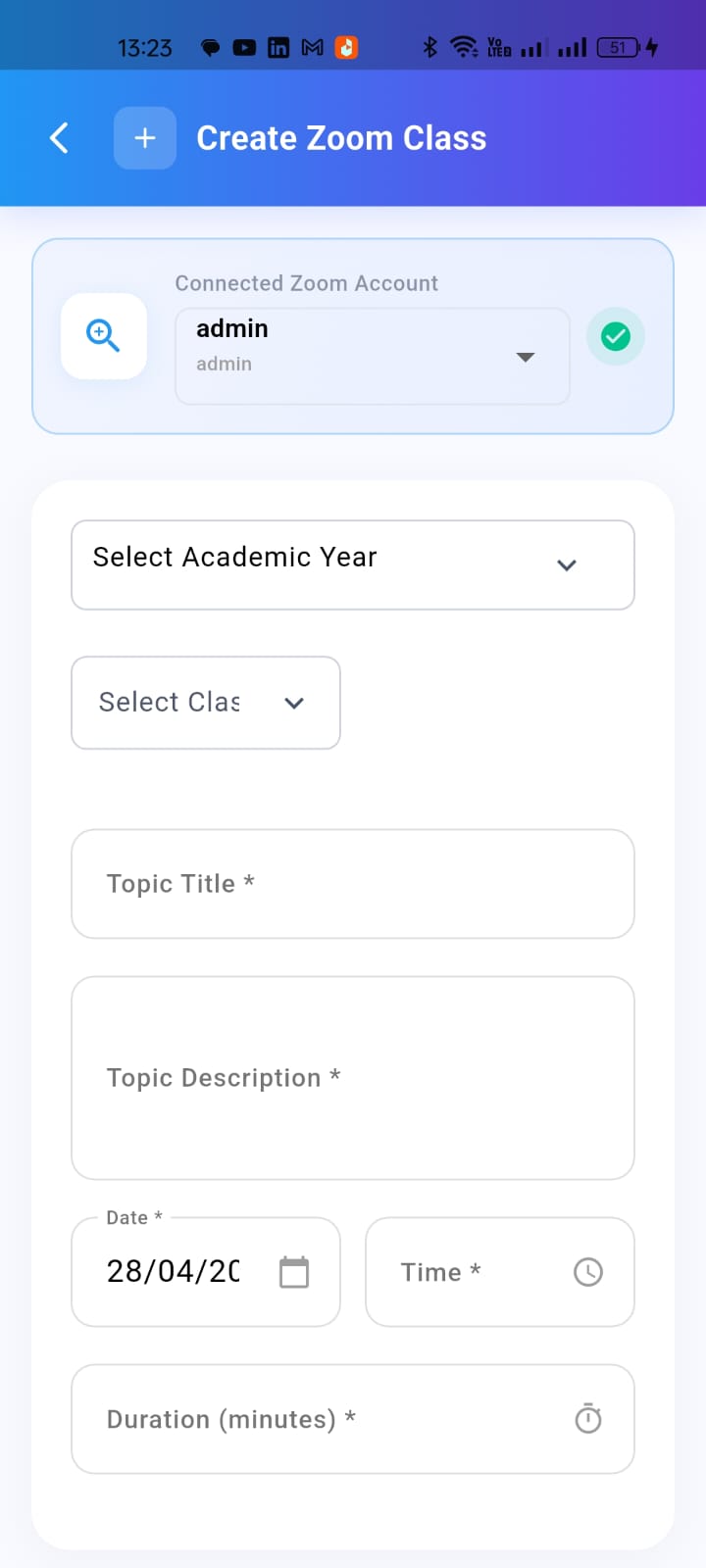
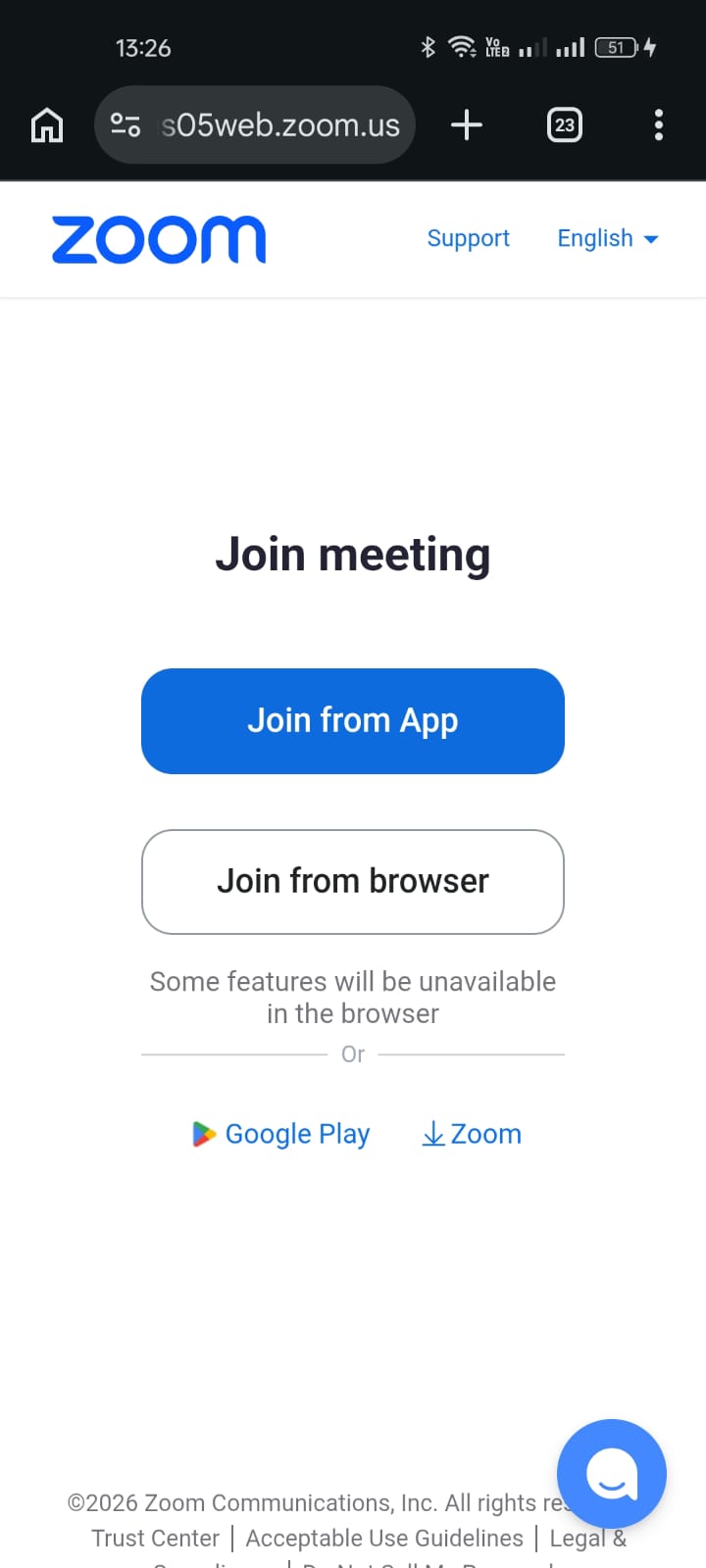
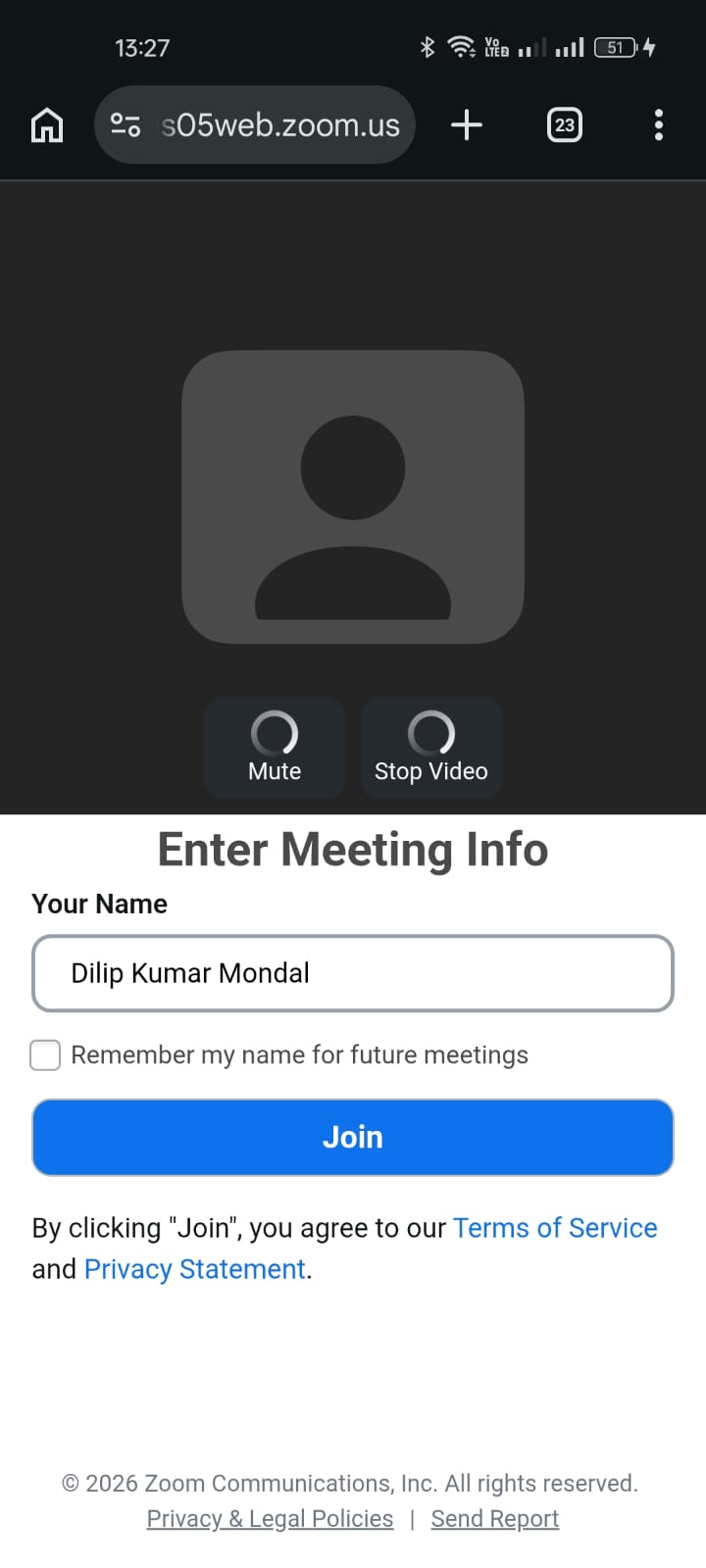
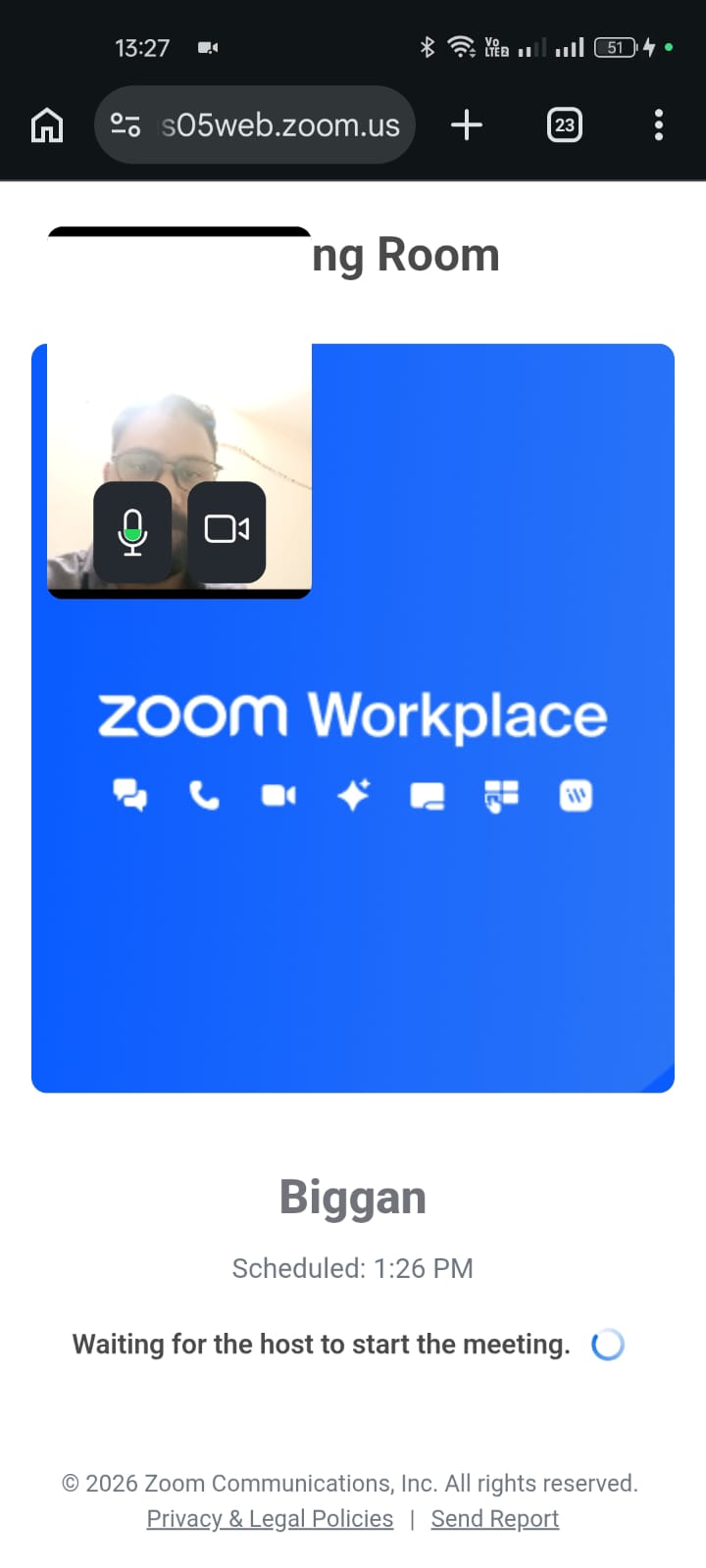
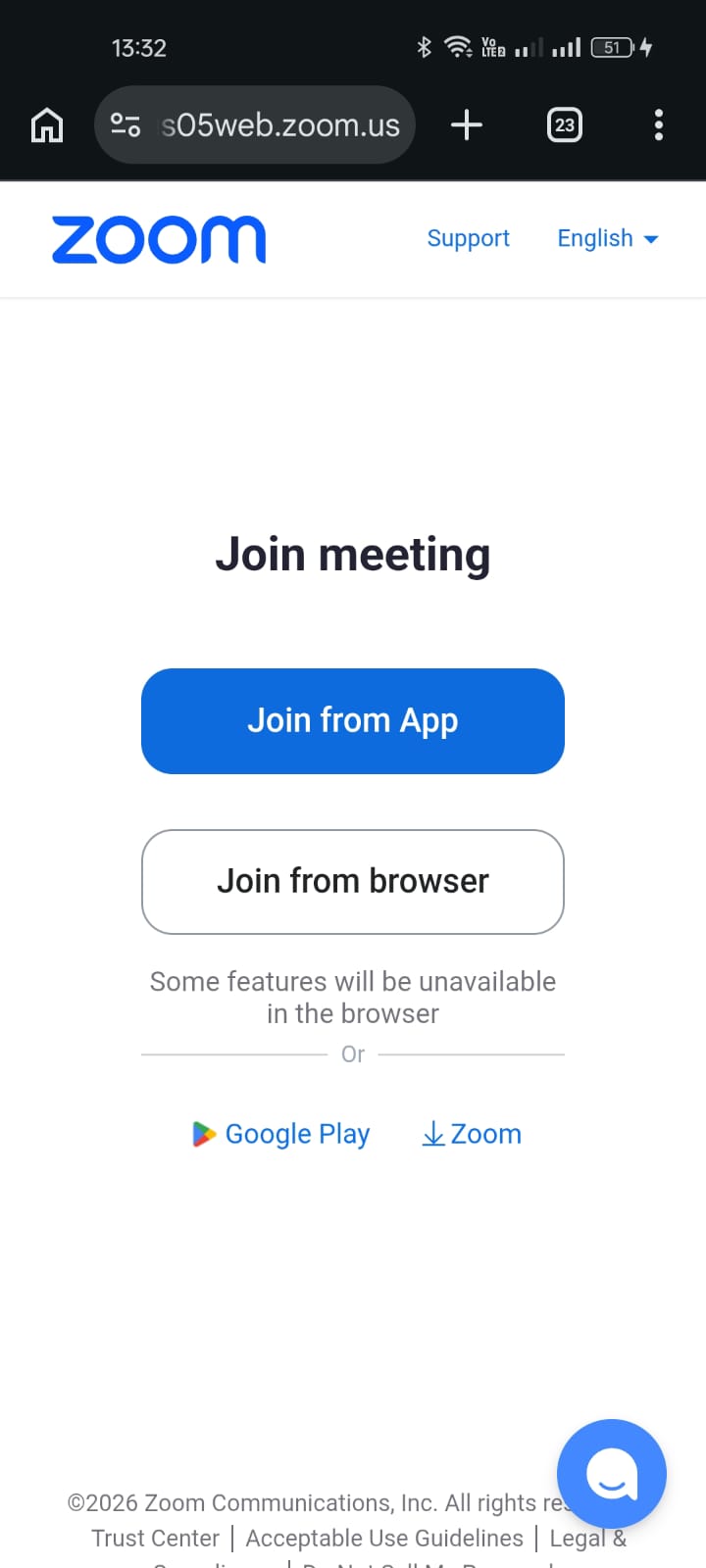
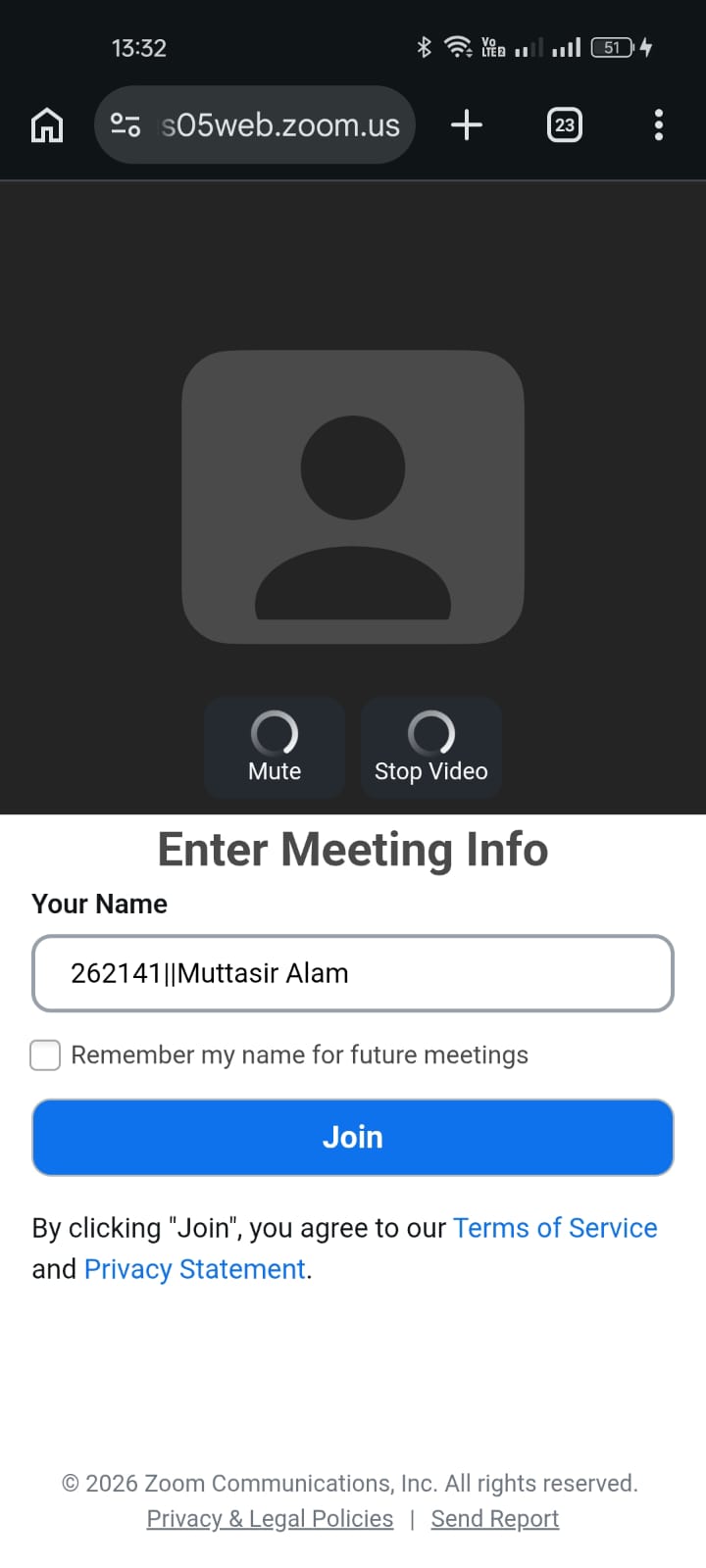
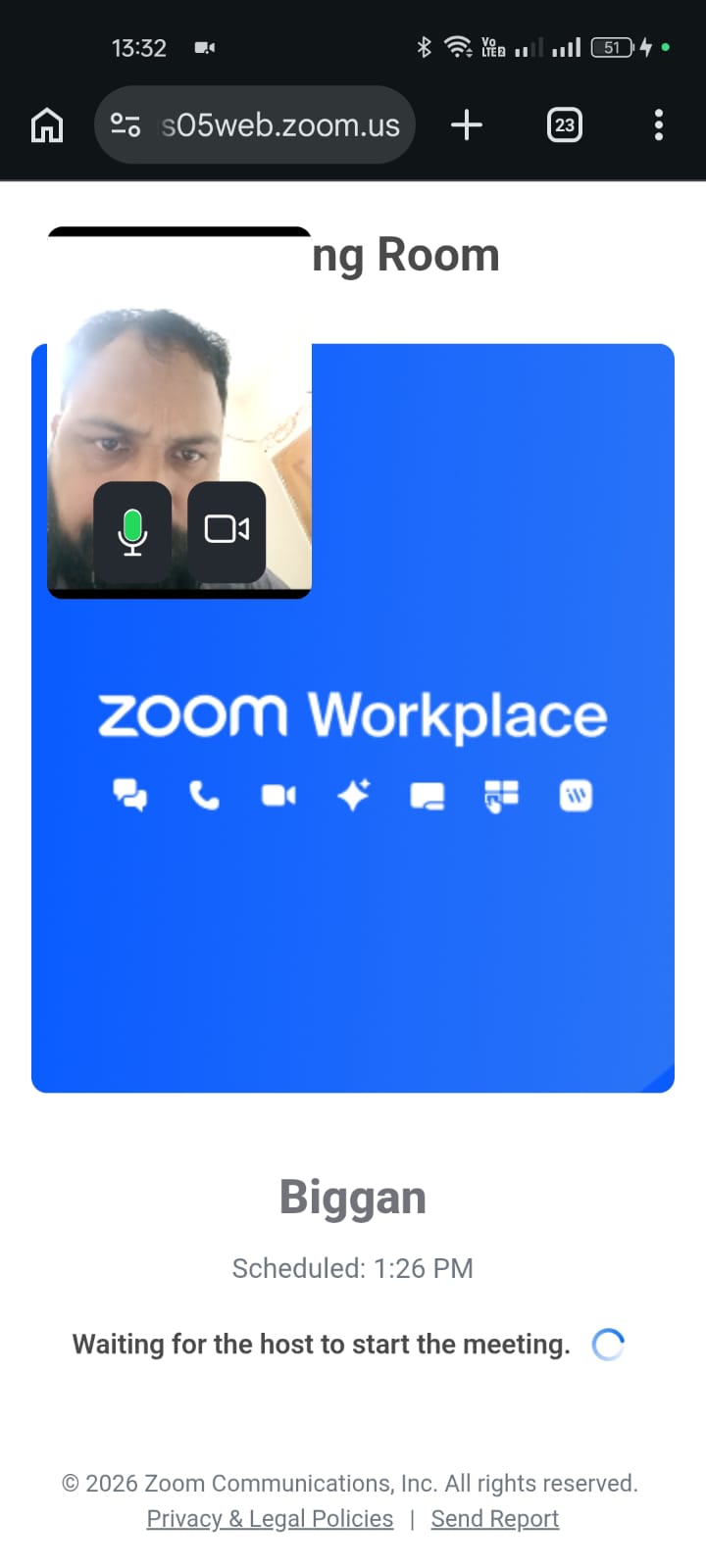
Prerequisites: An active Baily School Teacher/Staff account and a valid Zoom account.
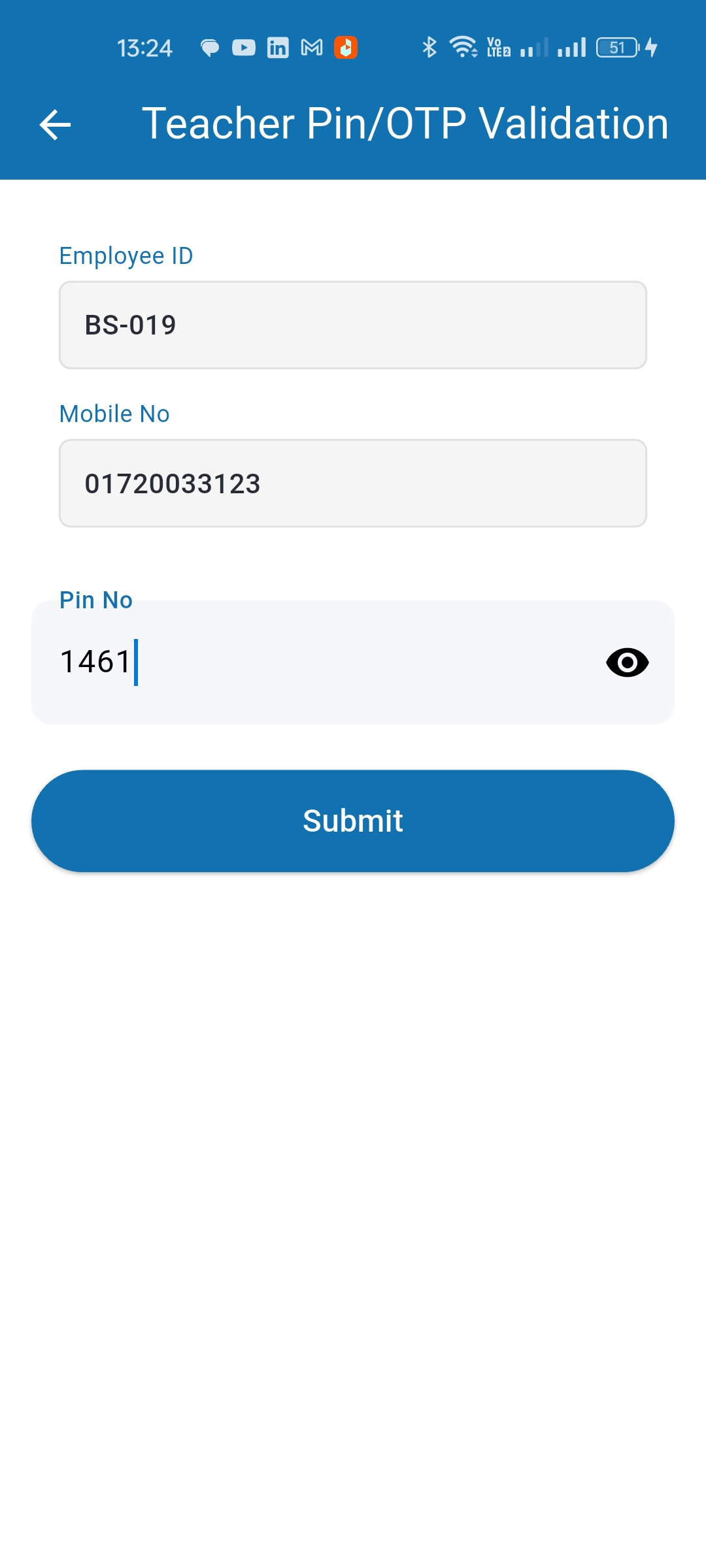
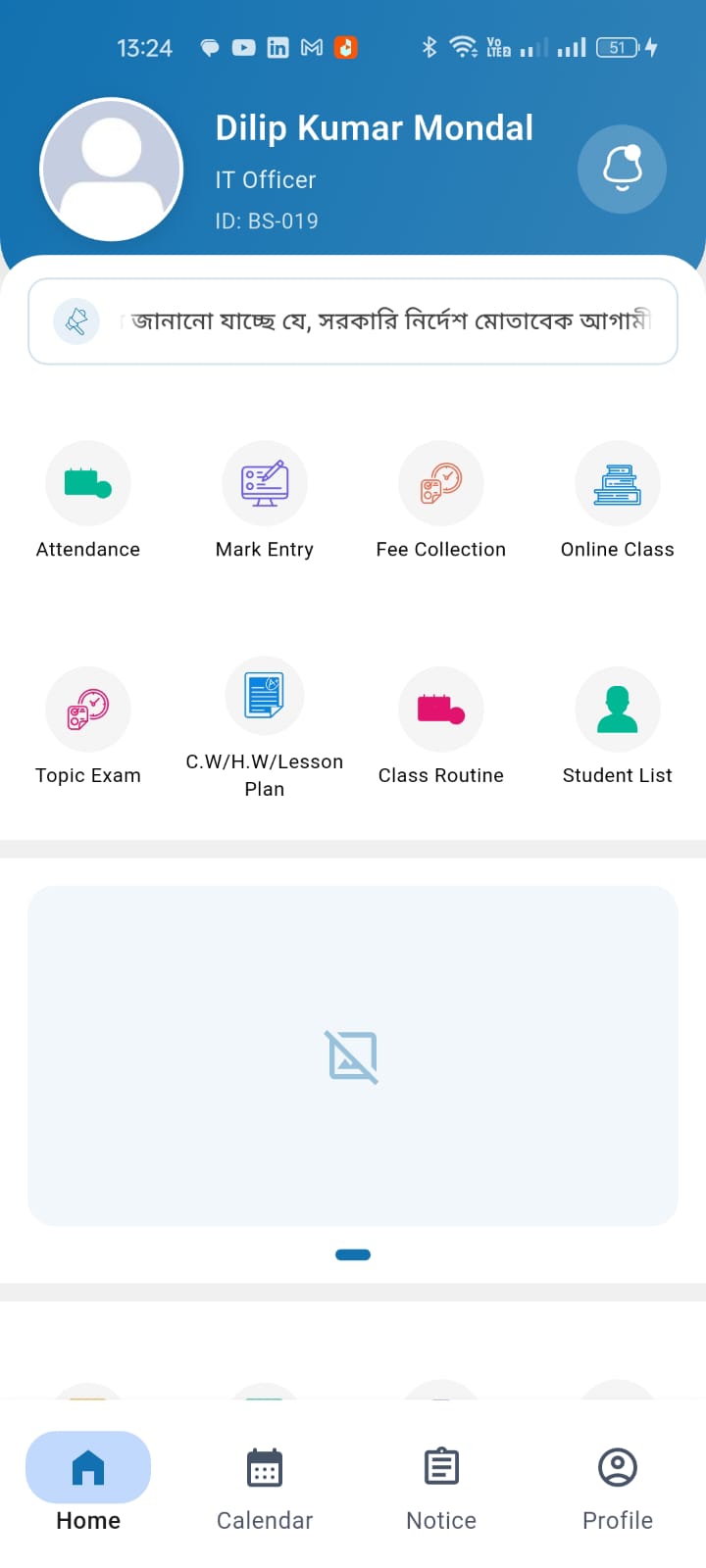
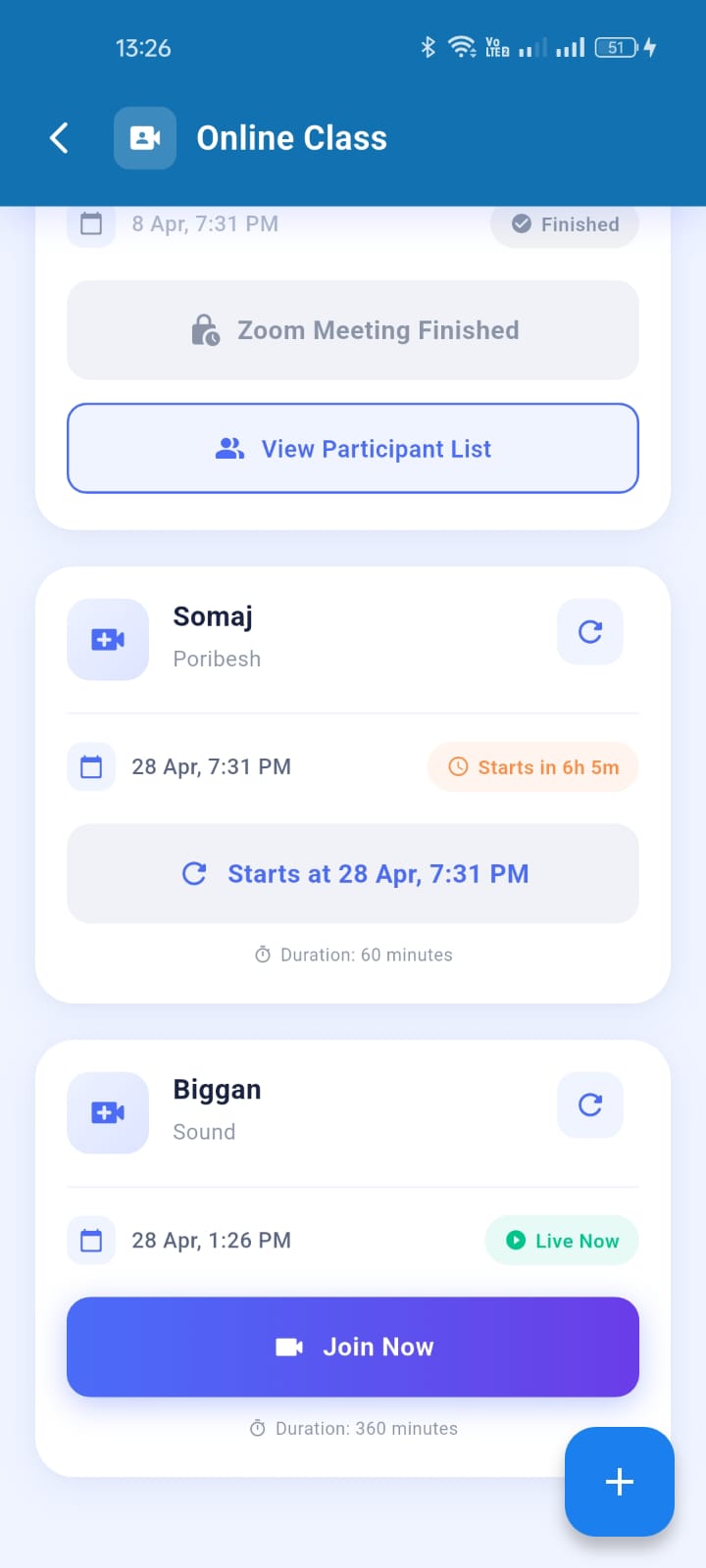
How to Add: Sign in as Teacher > Go to Online Class > Tap "+" > Click "Connect with Zoom" > Authorize your Zoom account via OAuth.
Troubleshooting: If you experience any connection issues, visit our Support & Troubleshooting Guide or email [email protected].
meeting:write:meeting): Enables teachers to schedule and start live virtual classes directly inside the app.meeting:read:meeting): Displays class details and join links for students and teachers.meeting:read:participant): Generates real-time student attendance reports for completed classes.user:read:user): Verifies the connected Zoom account identity for secure class hosting.To disconnect and remove the Baily School app from your Zoom account:
Upon de-authorization, Zoom sends a webhook event to our server. We immediately and permanently delete your Zoom OAuth access tokens and credentials from our database. No further Zoom data is collected. For inquiries, contact [email protected].